You click Print and nothing comes out. Or a sheet comes out blank. Or the job sits in the queue forever. “Printer not printing” can mean a dozen different problems, so the fastest way to fix it is to find out where the job is getting stuck: on the computer, on the way to the printer, or inside the printer itself.
Quick answer: Most printers stop printing because of a stuck print job, the wrong printer being selected, an “offline” status, or an ink, paper or error message on the printer. Restart the printer and computer, clear the print queue, check the printer’s screen for errors, and make sure your document is going to the right printer. If pages come out blank, run a print head cleaning.
First, Find Where the Problem Is
A print job travels from your computer, over a USB cable or WiFi, to the printer. Testing each part takes two minutes and tells you which fixes to skip.
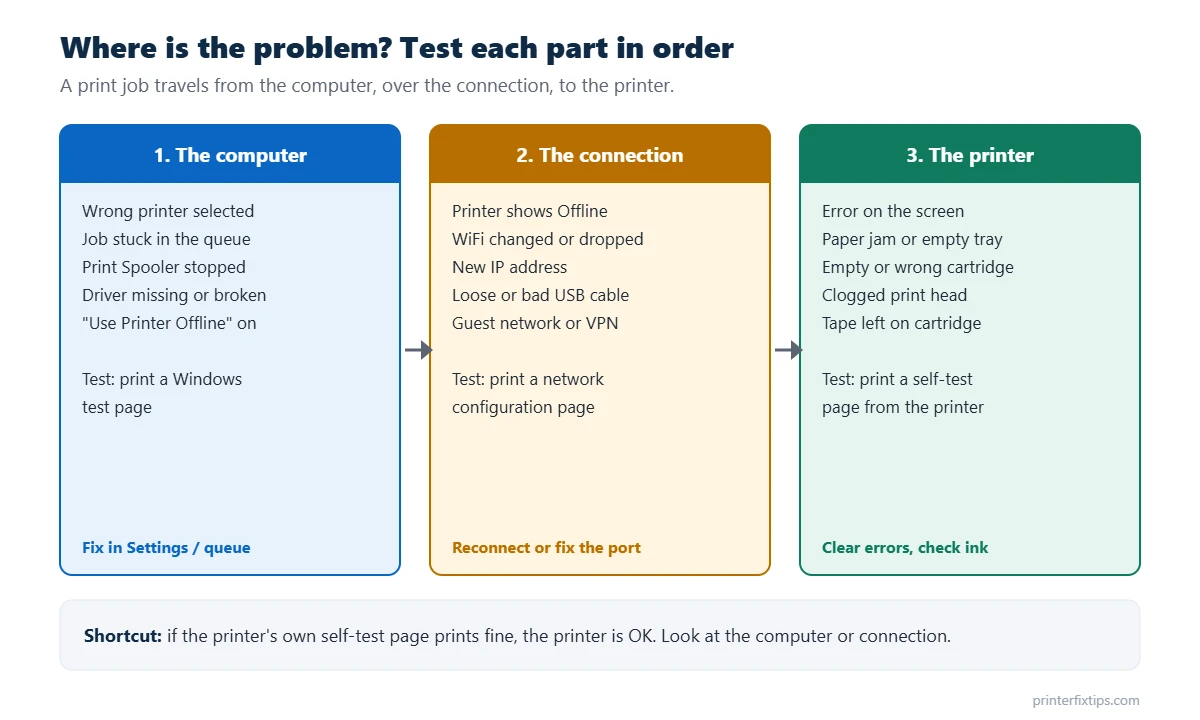
- Test the printer: print a self-test, configuration or nozzle check page from the printer’s own menu or buttons (check your manual for the button combination). If it prints, the printer works.
- Test the connection: print a network configuration page. It shows whether the printer is on WiFi and its IP address.
- Test the computer: in Windows, open the printer in Printers & scanners and choose Print test page. If the printer’s own page prints but the Windows test page doesn’t, the problem is on the computer or the connection.
12 Fixes for a Printer That Won’t Print
Start at the top. Test a print after each fix and stop when it works.
1. Read the printer’s screen or lights
A printer with a paper jam, an open cover, an empty tray or an empty cartridge will accept jobs and then do nothing. Look at the display or the blinking lights and clear whatever it is complaining about. A blinking orange or “attention” light almost always means the printer is waiting for you.
2. Restart the printer and the computer
Turn the printer off with its power button, unplug it for 60 seconds, then turn it back on. Restart the computer too. This clears stuck jobs on both ends and fixes more cases than any other single step.
3. Make sure you are printing to the right printer
In the print dialog, look at the printer name before you click Print. Windows sometimes switches the default to “Microsoft Print to PDF” or OneNote, which saves a file instead of printing. To stop that, go to Settings > Bluetooth & devices > Printers & scanners, turn off Let Windows manage my default printer, then set your real printer as the default.
4. Clear the print queue
- Open Printers & scanners, click your printer and choose Open print queue.
- Right-click any document that shows Error and cancel it, or use Printer > Cancel All Documents.
- If documents won’t disappear, restart the Print Spooler service (next fix).
5. Restart the Print Spooler
The Print Spooler is the Windows service that hands jobs to the printer. When it hangs, nothing prints. Press Windows + R, type services.msc, find Print Spooler, right-click it and choose Restart. If jobs are still stuck, our printer offline guide shows how to empty the spool folder completely.
6. Fix an “Offline” status
If Windows or your Mac shows the printer as Offline, nothing will reach it. Turn off Use Printer Offline in the print queue, check that the printer and computer are on the same WiFi network, and confirm the printer’s IP address hasn’t changed. The full walkthrough is here: How to fix printer offline on Windows and Mac.
7. Check the connection
- USB: unplug the cable and plug it into a different port directly on the computer, not through a hub. Try another cable if you have one.
- WiFi: make sure the printer’s WiFi light is solid, not blinking. If you changed routers or your WiFi password, the printer needs to be reconnected. For HP printers, see how to connect an HP printer to WiFi.
- VPN or guest network: turn off the VPN and move your computer off the guest WiFi. Both can hide the printer from your computer.
8. Check the paper
Load at least 10 sheets, square the stack and slide the paper guides against the edges without bending the paper. Then make sure the paper size in the print dialog matches what is in the tray. A mismatch makes many printers stop and wait. Not sure which size you have? See our printer paper size chart.
9. Check the ink or toner
- Open the printer software or the printer’s menu and check the levels. Some printers refuse to print anything, even black, when one color is empty.
- On a new cartridge, make sure you removed the plastic tape and the orange cap.
- If the printer says the cartridge is “not recognized” or “incompatible,” take it out, wipe the copper contacts gently with a lint-free cloth and reseat it until it clicks.
- Subscription ink (such as HP Instant Ink) stops working if the subscription lapses or the printer loses internet access for too long.
10. Clean the print head
If the printer runs but the pages are blank, faded or streaky, the print head nozzles are probably clogged. Run the built-in cleaning: in Windows, open Printing preferences and look for a Maintenance or Tools tab; on the printer, look for Clean Printhead or Head Cleaning under Tools or Maintenance. Print a nozzle check afterward. Running one or two cleanings is fine; running ten in a row only wastes ink.
11. Reinstall the printer driver
A corrupted or wrong driver can make jobs vanish without an error. Remove the printer, delete the old driver, and install the full driver from the manufacturer’s website. If Windows shows Driver is unavailable, follow our step-by-step guide: Printer driver is unavailable fix.
12. Try a different app or device
If only one file refuses to print, the file is the problem, not the printer. Try saving it as a PDF and printing that. In Adobe Acrobat Reader, the Advanced button in the print dialog has a Print as image option that gets around damaged or unusual PDFs. If a different computer or phone prints fine, focus on the first computer’s driver and settings.
Printer Printing Blank Pages?
A blank page means the printer received the job but no ink reached the paper. Work through these in order:
- Check that the tape is removed from new cartridges.
- Check ink levels and replace any empty cartridge.
- Run a print head cleaning, then print a nozzle check page.
- If the nozzle check is blank too, let an inkjet sit for 30 minutes after cleaning and try once more. Ink sometimes needs time to soak back into a dried head.
- On a laser printer, take out the toner cartridge, rock it gently side to side to spread the toner, and put it back.
Printer Not Printing Black, or Not Printing Color
If only black is missing, the black cartridge is empty, dried up or its nozzles are clogged. Clean the print head and check the black level. If color is missing, check that you didn’t select Grayscale or Black ink only in the print settings, then check and clean the color cartridge. Printers that sat unused for weeks are the most likely to have this problem, so print a page every week or two.
Printer Not Printing on a Mac
- Open System Settings > Printers & Scanners, select the printer and open its queue. Click Resume if printing is paused and delete any job with an error.
- Remove the printer (Remove Printer or the minus button) and add it again, choosing AirPrint under Use if it is offered.
- If that fails, Control-click the printer list and choose Reset Printing System, then add the printer again. This removes all printers and jobs from the Mac. Apple explains the reset here: Reset the printing system on your Mac.
Notes for HP, Epson, Canon and Brother
- HP: the HP app has a Diagnose & Fix tool, and HP Print and Scan Doctor runs a deeper check on Windows. More HP guides.
- Epson: EcoTank models need ink to be primed after refilling. If pages are blank after a refill, run a Power Cleaning or Ink Flush from the maintenance menu (it uses a lot of ink, so try a normal cleaning first). More Epson guides.
- Canon: a flashing orange light with a number of flashes is a support code; count the flashes and look it up in the manual. More Canon guides.
- Brother: laser models stop when the drum or toner reaches end of life. Check the display for “Replace Drum” or “Replace Toner.” More Brother guides.
Frequently Asked Questions
Why is my printer not printing when it has ink?
The most common causes are a stuck print job, the wrong printer selected, an offline status, or clogged print head nozzles. Clear the print queue, restart the printer and computer, confirm the printer is set as default, and run a print head cleaning if pages come out blank or faded.
Why does my printer say it is printing but nothing comes out?
The job reached the printer but no ink is reaching the paper, or the job is stuck before the printer starts. Check the printer’s screen for errors, make sure paper is loaded, and run a nozzle check. If the nozzle check is blank, clean the print head.
How do I get my printer to print again?
Restart the printer and computer, cancel all documents in the print queue, restart the Print Spooler on Windows, and make sure the printer is not offline. If it still won’t print, reinstall the printer driver from the manufacturer’s website.
Why is my printer printing blank pages?
Blank pages usually mean empty ink, tape left on a new cartridge, or clogged print head nozzles. Remove any tape, check ink levels and run a head cleaning followed by a nozzle check.
Why won’t my printer print from my phone?
Your phone and printer must be on the same WiFi network, and guest networks or VPNs can block printing. On iPhone, use AirPrint from the Share menu. On Android, use the built-in print option or the printer maker’s app.
Can a Windows update stop my printer from printing?
Yes. Updates sometimes replace the printer driver or reset the Print Spooler. Restart the spooler first. If the printer shows Driver is unavailable, remove it and reinstall the latest driver from the manufacturer.
If you made it through all twelve fixes and the printer still won’t print its own self-test page, the problem is inside the printer. Contact the manufacturer through its official website, especially if it is under warranty. For more help, browse our printer not printing guides.