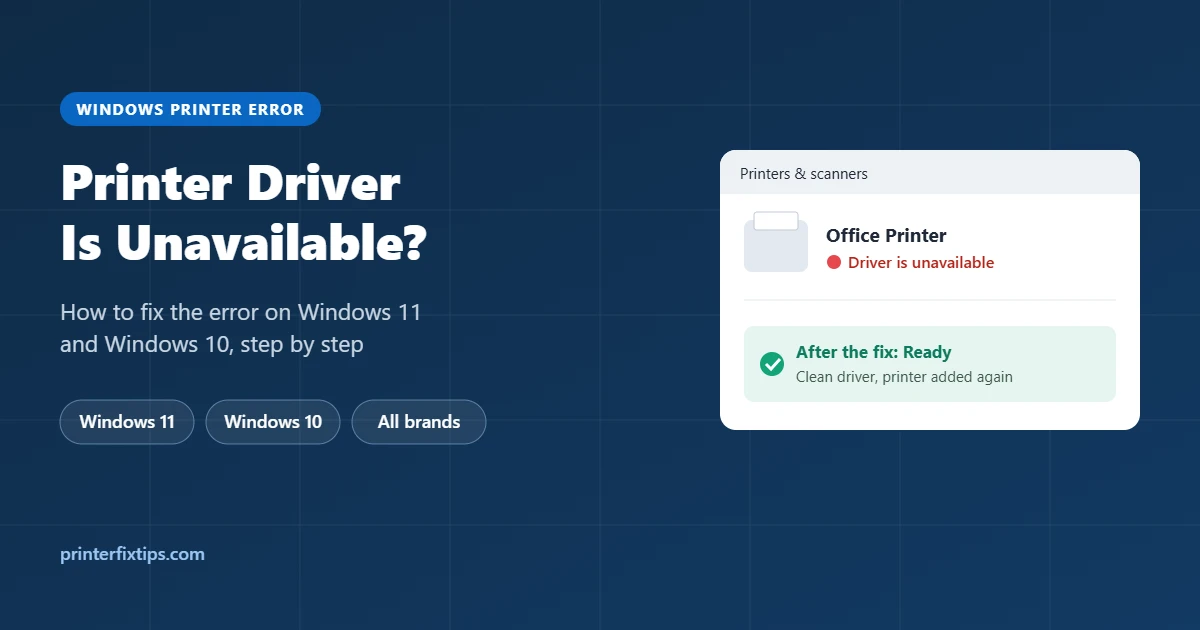
You open Printers & scanners in Windows and, under your printer’s name, it says Driver is unavailable. Print jobs fail or never leave the queue. The printer itself is fine. Windows has lost, damaged or rejected the small piece of software it uses to talk to the printer, and the fix is to give it a clean, working driver.
Quick answer: Check Windows Update and install any printer driver under Optional updates. If that doesn’t help, do a clean reinstall: remove the printer, restart, delete the old driver package in Print server properties, install the full driver from the printer maker’s website, and add the printer again.
What Does “Driver Is Unavailable” Mean?
Every printer needs a driver: software that turns your document into instructions the printer understands. When Windows says the driver is unavailable, it can still see the printer, but it can’t load a driver for it. Until that is fixed, nothing will print, and scanning and ink-level tools usually stop working too.
Why Does My Printer Say Driver Is Unavailable?
- A Windows update replaced or removed the driver. This is the most common trigger, especially after a big feature update.
- An upgrade from Windows 10 to Windows 11 carried over a driver that isn’t compatible.
- A corrupted driver after a crash, power loss or a half-finished install.
- The wrong driver. Windows sometimes installs a basic “WSD” device driver that doesn’t fully support the printer.
- An old printer whose maker never released a Windows 11 driver.
How to Fix “Driver Is Unavailable” on Windows 11 and 10
Try these in order. Fixes 1 and 2 take a few minutes. Fix 3 is the one that solves most stubborn cases.
Fix 1: Restart the printer and the computer
Turn the printer off, restart Windows, then turn the printer back on. If the driver failed to load only because of a temporary glitch, the status will change back to Ready.
Fix 2: Install the driver from Windows Update
- Open Settings > Windows Update and click Check for updates. Install everything it finds.
- Then go to Advanced options > Optional updates and expand Driver updates.
- If a driver for your printer brand is listed, tick it and click Download & install. Restart when asked.
On Windows 10, the path is Settings > Update & Security > Windows Update > View optional updates.
Fix 3: Clean reinstall of the printer driver
Simply removing and re-adding the printer often fails, because Windows quietly reuses the broken driver it still has stored. The clean reinstall below deletes that stored driver first. Full steps are in the next section.
Fix 4: Update the driver in Device Manager
- Right-click the Start button and open Device Manager.
- Expand Print queues (or Printers), right-click your printer and choose Update driver.
- Choose Search automatically for drivers. If you already downloaded the maker’s driver, choose Browse my computer for drivers instead and point it to the folder.
Fix 5: Repair Windows system files
If drivers keep breaking, damaged Windows files may be the cause. Open Command Prompt or Terminal as administrator and run these two commands one at a time. Each can take several minutes.
sfc /scannow
DISM /Online /Cleanup-Image /RestoreHealth
Restart the computer afterward, then do the clean reinstall again.
Fix 6: Undo a bad Windows update
If the error appeared right after an update and nothing else helps, go to Settings > Windows Update > Update history > Uninstall updates, remove the most recent update, and restart. Then use Pause updates for a week or two while the printer maker or Microsoft releases a fix.
Fix 7: Use the printer maker’s own repair tool
- HP: HP Print and Scan Doctor (Windows) or the HP app’s Diagnose & Fix. HP guides.
- Epson: download the full Drivers and Utilities Combo Package for your model. Epson guides.
- Canon: the full MP Drivers or Printer Driver package from Canon’s support site. Canon guides.
- Brother: the Full Driver & Software Package. Brother guides.
The Clean Reinstall, Step by Step
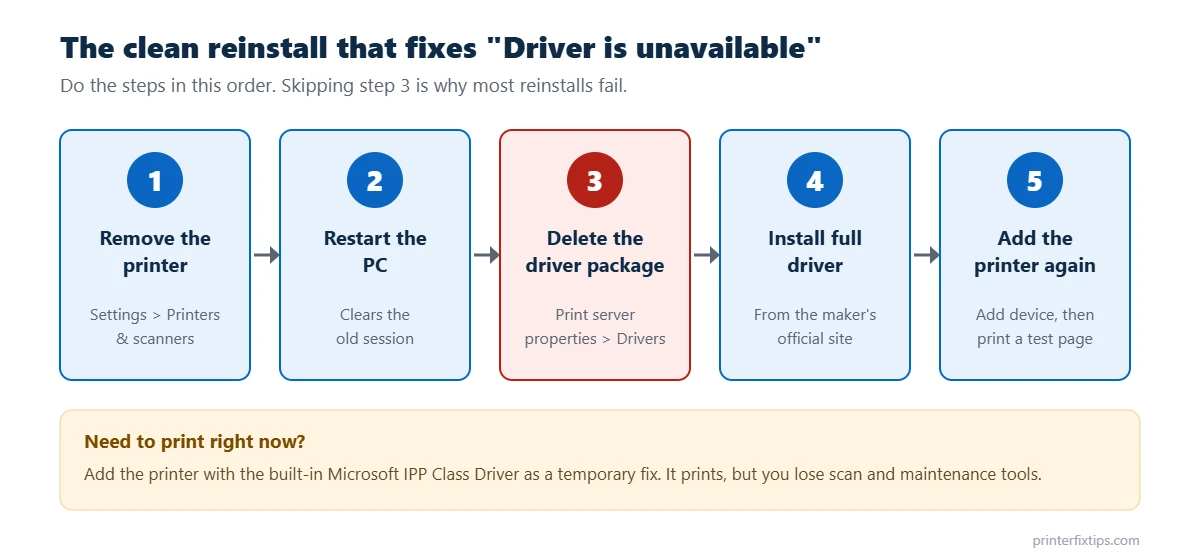
Step 1: Remove the printer
Go to Settings > Bluetooth & devices > Printers & scanners (Windows 10: Settings > Devices > Printers & scanners), click the printer and choose Remove. If the printer’s own software is listed in Settings > Apps > Installed apps, uninstall that too.
Step 2: Restart the computer
This releases any driver files Windows still has open. If the printer is connected by USB, unplug the cable now and leave it unplugged until the installer asks for it.
Step 3: Delete the old driver package
- In Printers & scanners, scroll down to Related settings and click Print server properties. (Shortcut: press Windows + R and run
printui /s /t2.) - Open the Drivers tab.
- Select every driver that belongs to your printer and click Remove.
- Choose Remove driver and driver package and confirm.
“Driver is in use” error? Restart the Print Spooler (press Windows + R, run services.msc, right-click Print Spooler and choose Restart) and try removing it again.
Step 4: Install the full driver from the manufacturer
Go to the official support website of HP, Epson, Canon, Brother or whoever made your printer. Search for your exact model number (it is on a label on the front or back of the printer), and download the full driver or software package for your version of Windows. Run the installer and follow it until it finds the printer.
Only download drivers from the printer maker’s website. “Driver updater” programs and download sites from search ads often bundle adware, and some lead to fake support phone numbers. Real printer drivers are always free.
Step 5: Add the printer and print a test page
If the installer didn’t add the printer, go to Printers & scanners > Add device. Once it shows Ready, click the printer, open Printer properties and choose Print test page.
Need to Print Right Now? Use a Built-In Microsoft Driver
Windows includes generic class drivers that work with most modern network printers. They print fine, but you lose extras like scanning, ink levels and maintenance tools. Use this as a stopgap until the proper driver is installed.
- In Printers & scanners, click Add device, then Add manually (or “The printer that I want isn’t listed”).
- Choose Add a printer using an IP address or hostname and enter the printer’s IP address from its network configuration page.
- When asked for a driver, pick Microsoft as the manufacturer and choose Microsoft IPP Class Driver. For many laser printers, Microsoft PCL6 Class Driver also works.
Old Printer With No Windows 11 Driver?
If the maker’s website only lists drivers for Windows 10 or older, try these before replacing the printer:
- Install the newest Windows 10 driver. Most of them work on Windows 11.
- For HP LaserJet and other business printers, try the HP Universal Print Driver. Other brands offer similar universal drivers.
- Use the Microsoft IPP or PCL6 class driver described above.
- Connect over USB instead of WiFi, which lets Windows use its broader built-in driver library.
If the printer also won’t show up at all, it may be offline rather than driverless. See how to fix printer offline. And if it shows Ready but still won’t print, work through why your printer is not printing.
Frequently Asked Questions
What does driver is unavailable mean on a printer?
It means Windows can see the printer but cannot load the driver software it needs to communicate with it. The printer hardware is usually fine. Installing a clean, compatible driver fixes it.
How do I fix printer driver is unavailable on Windows 11?
Check Windows Update and Optional updates for a printer driver first. If that fails, remove the printer, restart, delete the old driver package in Print server properties, install the full driver from the manufacturer’s website, and add the printer again.
Why does my printer keep saying driver is unavailable?
It usually comes back after Windows updates replace the driver, or because a damaged driver package is still stored on the PC and gets reused. Delete the driver package completely, install the manufacturer’s driver, and run sfc /scannow if it keeps happening.
Is driver is unavailable a hardware problem?
Almost never. It is a software problem on the computer. A quick way to confirm is to print a self-test page from the printer’s own menu. If that prints, the printer is working.
Can I print without the manufacturer’s driver?
Yes. Windows includes the Microsoft IPP Class Driver and PCL6 Class Driver, which work with many printers. You can print, but scanning, ink levels and maintenance tools may not be available.
Does this error happen on a Mac?
Macs don’t show this exact message. If a Mac can’t print because of a driver problem, remove the printer in Printers and Scanners and add it again using AirPrint, which needs no separate driver.
For more help with installing, updating and setting up printers, browse our printer setup and driver guides.