Connecting an HP printer to WiFi takes about five minutes once you know which method your printer uses. Printers with a touchscreen have a setup wizard built in. Printers with only buttons are set up through the HP app on your phone or computer. If your router has a WPS button, you can skip typing the password entirely.
Quick answer: On a touchscreen HP printer, tap the Wireless icon (or Setup > Network), run the Wireless Setup Wizard, pick your network and enter the password. On a printer without a screen, put it in Wi-Fi setup mode (the WiFi light blinks), then open the HP app and add the printer within two hours.
What You Need Before You Start
- Your WiFi name and password. The password is case-sensitive. If you never changed it, it is usually printed on a sticker on the router.
- The printer close to the router for the setup. You can move it once it is connected.
- A 2.4 GHz network. Many HP printers, especially older and budget models, only see 2.4 GHz. If your router combines 2.4 and 5 GHz under one name, setup usually still works. If it fails, see the troubleshooting section.
- The HP app on your phone or computer if your printer has no screen. Get it from HP’s website, the App Store, Google Play or the Microsoft Store. (HP renamed the older HP Smart app to simply “HP”.)
Which Method Should You Use?
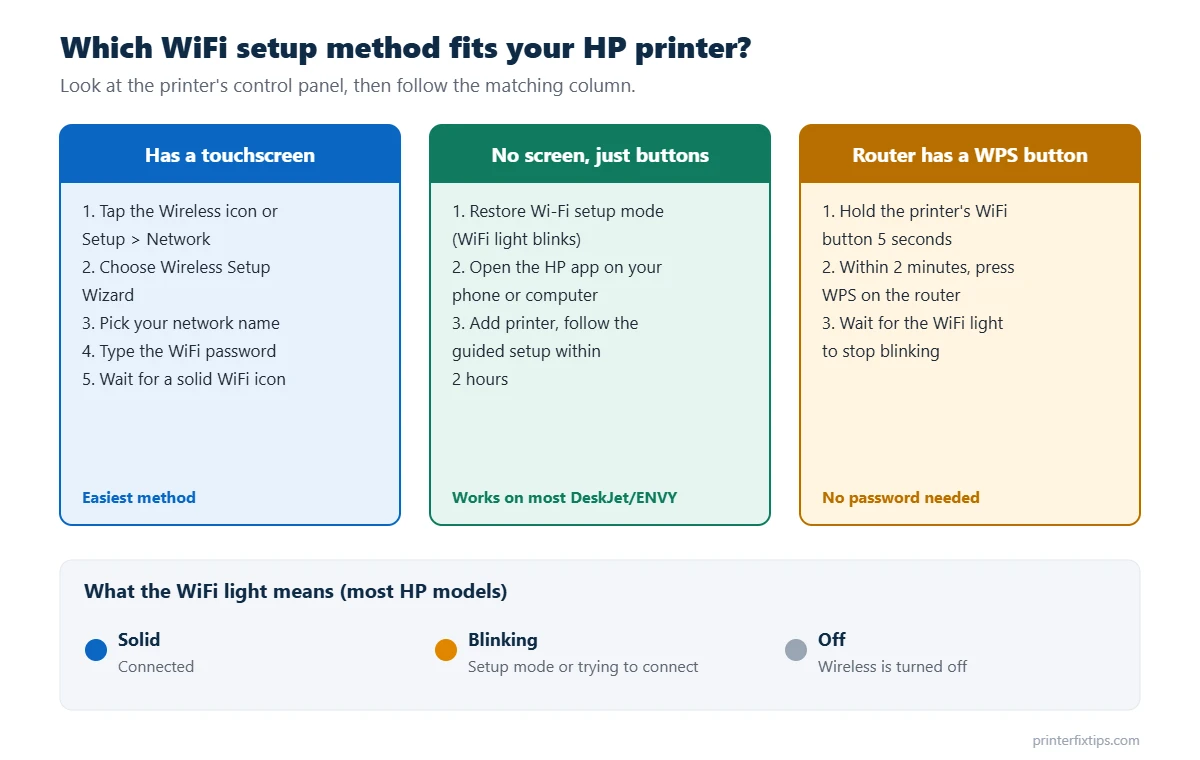
Look at the front of your printer. If it has a touchscreen or a small display with menus, use Method 1. If it only has buttons and lights, use Method 2. Method 3 works on almost any model, as long as your router has a WPS button.
Method 1: Connect a Touchscreen HP Printer to WiFi
This covers most OfficeJet Pro, ENVY Inspire, Smart Tank and LaserJet models with a display.
- On the printer’s control panel, tap the Wireless icon, or open Setup (or Settings) and go to Network Setup or Wireless Settings.
- Tap Wireless Setup Wizard. If you don’t see it, choose Restore Network Settings first, then look again.
- Wait while the printer scans, then select your network name from the list.
- Type your WiFi password exactly, including capital letters, and tap Done or OK.
- When the wireless icon on the screen stops blinking and stays on, the printer is connected. Print a Wireless Network Test Report from the same menu if you want to confirm it.
Method 2: Connect an HP Printer Without a Screen (HP App)
DeskJet, ENVY and many Smart Tank printers have no display, so the HP app does the setup. The first step is to put the printer into Wi-Fi setup mode, which makes it visible to the app for about two hours.
Step 1: Restore Wi-Fi setup mode
- Most DeskJet and ENVY models: press and hold the Wireless button and the Cancel (X) button together for about 5 seconds, until the WiFi light starts blinking. On some models the Power light flashes first.
- ENVY 6000 and 6400, DeskJet 6000 and 6400, and Tango: press and hold the Wireless button on the back of the printer for 5 seconds, until the status light flashes blue or purple.
- If neither works, search HP’s support site for “Restore Wi-Fi setup mode” plus your model number. HP lists the exact button presses for each printer.
Note: Restoring Wi-Fi setup mode clears the old network settings on the printer. That is what you want when the printer is stuck on an old router.
Step 2: Add the printer in the HP app
- Keep your phone or computer on the WiFi network you want the printer to use. Turn on Bluetooth on your phone; the app uses it to find nearby printers.
- Open the HP app and tap Add printer (or the plus sign).
- Select your printer when it appears. If the app asks for your WiFi password, enter it.
- Follow the prompts until the app says the printer is connected. The WiFi light on the printer will stop blinking and stay on.
If the app does not find the printer, make sure you are still inside the two-hour setup window. If it has expired, restore Wi-Fi setup mode again and retry.
Method 3: Connect an HP Printer With the WPS Button
WPS (Wi-Fi Protected Setup) connects the printer without typing a password. Check your router for a button labeled WPS or with two curved arrows.
- Put the printer in WPS mode. Without a touchscreen: press and hold the Wireless button for 5 seconds until the light flashes. With a touchscreen: go to the Wireless or Network menu, choose Wi-Fi Protected Setup, then Push Button, and tap Start.
- Within two minutes, press and hold the WPS button on the router for 3 to 5 seconds.
- Wait for the printer’s WiFi light to stop blinking and stay on.
If the printer shows a WPS PIN during setup, you can cancel that screen. The PIN is for Wi-Fi Direct, not for connecting to your router. HP’s own instructions for this method are on its support page: Connect an HP printer using WPS.
How to Connect an HP Printer to a New WiFi Network
A new router, a new internet provider or a changed password all mean the printer is still trying to join the old network. It will not switch on its own.
- Restore the printer’s network settings. On touchscreen models: Wireless or Setup > Network Setup > Restore Network Settings. On button models: restore Wi-Fi setup mode as shown in Method 2.
- Connect it to the new network with Method 1, 2 or 3.
- On your computer, remove the old printer entry and add it again. Windows and macOS often keep pointing at the printer’s old address, which shows up as “printer offline.”
Printer shows as offline after the switch? Follow our guide on how to fix printer offline. Fixes 6 and 7 there cover the IP address change that usually causes it.
Adding the HP Printer on Your Computer or Phone
Getting the printer on WiFi is half the job. Each device that prints also needs to know about it.
- Windows 11: Settings > Bluetooth & devices > Printers & scanners > Add device. Pick your HP printer and click Add device. For scanning and ink levels, install the HP app too.
- Windows 10: Settings > Devices > Printers & scanners > Add a printer or scanner.
- Mac: System Settings > Printers & Scanners > Add Printer, Scanner or Fax. Select the printer and choose AirPrint under Use.
- iPhone and iPad: nothing to install. Tap Share, then Print, and choose the printer (AirPrint).
- Android: open the file, tap Print, and select the printer. If it is missing, install the HP app.
HP Printer Won’t Connect to WiFi? Try These Fixes
- Double-check the password. One wrong capital letter is the most common reason setup fails.
- Restart the router and the printer, then run the setup again with the printer within a few feet of the router.
- Split the bands if you need to. If your router uses one name for 2.4 GHz and 5 GHz and the printer still won’t join, give the 2.4 GHz band its own name in the router settings and connect the printer to that.
- Avoid guest networks and hotspots with “client isolation.” Devices on them can’t see each other, so you could not print even if the printer connected.
- Check the router’s security settings. Use WPA2 or WPA2/WPA3 mixed mode. Some older printers can’t join a WPA3-only network. Also check that MAC address filtering isn’t blocking the printer.
- Print a Wireless Network Test Report. It tells you exactly what failed: wrong password, network not found, weak signal. On touchscreen models it is under the Wireless or Reports menu. On many button models, press the Wireless and Information buttons together.
- Update the printer firmware through the HP app once you can connect, even by USB. Updates often fix WiFi bugs.
HP+ printers must stay connected to the internet and signed in to an HP account to print. If your printer is an HP+ model, check that the router has internet access, not just a local WiFi signal.
Frequently Asked Questions
How do I put my HP printer in WiFi setup mode?
On most DeskJet and ENVY printers without a screen, press and hold the Wireless and Cancel buttons together for about 5 seconds until the WiFi light blinks. On touchscreen models, go to Wireless or Setup, then Network Setup, and choose Restore Network Settings. Setup mode stays active for about two hours.
Can I connect an HP printer to WiFi without the app?
Yes. Touchscreen printers can join WiFi with the Wireless Setup Wizard on the printer itself, and almost any HP printer can connect with the WPS button on your router. Printers without a screen and without WPS need the HP app.
Why won’t my HP printer connect to my WiFi?
The usual causes are a mistyped password, the printer being too far from the router, a 5 GHz-only or guest network, or WPA3-only security. Print a Wireless Network Test Report to see which one it is.
How do I connect my HP printer to a new router?
Restore the printer’s network settings first, connect it to the new network with the setup wizard, the HP app or WPS, then remove and re-add the printer on your computer so it uses the new connection.
Does an HP printer need 2.4 GHz WiFi?
Many HP printers only support 2.4 GHz. Newer models often support both 2.4 and 5 GHz. Check the specifications for your model on HP’s website. If in doubt, connect the printer to a 2.4 GHz network.
How do I find my HP printer’s IP address?
Print a network configuration page or Wireless Network Test Report. On touchscreen printers, tapping the Wireless icon also shows the IP address. You can type that address into a web browser to open the printer’s settings page.
Once your HP printer is on WiFi, reserve its IP address in your router so it doesn’t drop off later. More help for HP models is in our HP printer guides and WiFi and connection guides.