Your printer is switched on, it has paper and ink, and it printed fine yesterday. Today the computer insists it is “Offline.” In most cases nothing is wrong with the printer. The computer has simply lost track of it, and you can usually get it back in a few minutes without reinstalling anything.
Quick fix: Turn the printer off, restart your router, turn the printer back on and restart the computer. If it still says offline, open the print queue and make sure Use Printer Offline is not checked, cancel any stuck documents, and restart the Print Spooler service. If the printer keeps dropping offline after that, its IP address is probably changing. Fix 6 and Fix 7 below solve that for good.
In this guide
- What “printer offline” actually means
- Why printers go offline
- Two-minute checks before you start
- How to fix printer offline on Windows 11 and 10
- How to fix printer offline on a Mac
- Printer keeps going offline? Make the fix stick
- Free repair tools from HP, Epson, Canon and Brother
- When it really is the printer
- FAQ
What Does “Printer Offline” Mean?
“Offline” means your computer tried to reach the printer and got no answer. It does not mean the printer is broken. The printer might be asleep, connected to a different network, sitting at a new IP address, or the computer might have marked it offline on purpose because of a setting or a stuck print job.
Here is a quick way to tell where the problem is. Print a page from the printer’s own menu (look for Network Configuration Report, Wireless Test Report or Print Settings). If that page prints, the printer works and the problem is the connection or the computer. Keep that page; it shows the printer’s IP address, which you will need later.
Why Does My Printer Say Offline?
- The printer went to sleep or auto-off. Some printers drop off the network to save power and do not wake up when the computer calls.
- The WiFi changed. A new router, a new WiFi password or a reset router leaves the printer looking for a network that no longer exists.
- The printer got a new IP address. After a power cut or router restart, the router may hand the printer a different address. Windows keeps sending jobs to the old one.
- “Use Printer Offline” is turned on. This Windows setting holds every job until you turn it off.
- A stuck print job. One failed document can freeze the whole queue and make the printer look offline.
- The Print Spooler service crashed. This is the Windows service that hands jobs to the printer.
- The computer and printer are on different networks. A guest network, a VPN, or a mesh system that splits 2.4 GHz and 5 GHz can keep them apart.
- An outdated or broken driver, often right after a Windows or macOS update.
Two-Minute Checks Before You Start
- Look at the printer’s screen or lights. Clear any paper jam, open cover, empty cartridge or error message first. A printer stuck on an error will show as offline.
- Check the WiFi light or the wireless icon on the printer. If it is off or blinking, the printer is not on the network, so jump to the network fix in Fix 6.
- Make sure your computer is on the same WiFi network as the printer, not the guest network. Turn off any VPN for a minute.
- If the printer uses a USB cable, unplug it and plug it into a different USB port on the computer, without a hub in between.
How to Fix Printer Offline on Windows 11 and Windows 10
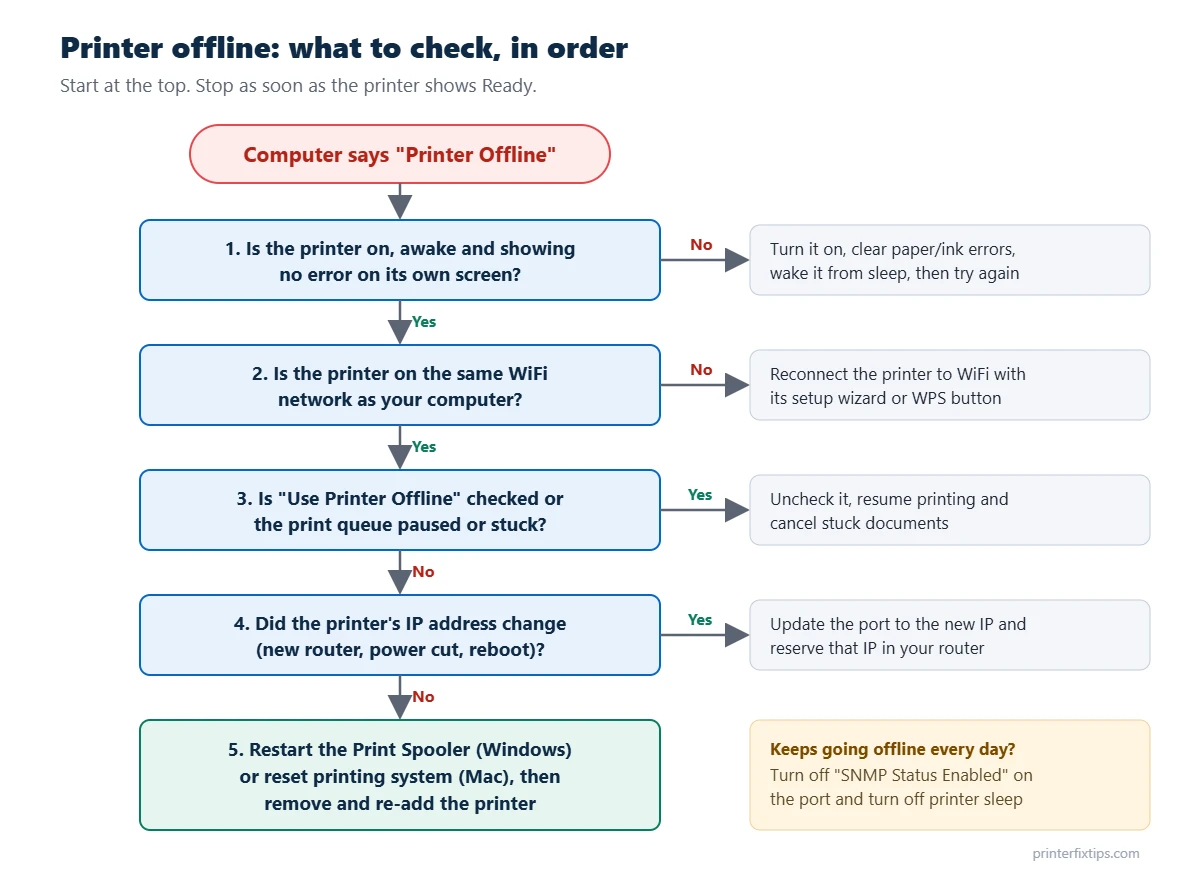
Work through these in order and test a print after each one. Most people are printing again by Fix 3 or Fix 4. The steps are written for Windows 11. Where Windows 10 is different, the Windows 10 path is shown too. (Microsoft ended support for Windows 10 in October 2025, but these steps still work on it.)
Fix 1: Restart the printer, router and computer in the right order
The order matters, because the printer needs a working network the moment it starts up.
- Turn the printer off with its power button.
- Unplug the router (and modem, if separate) for 30 seconds, then plug it back in. Wait until the internet light is solid, usually 2 to 3 minutes.
- Turn the printer back on and wait until it says Ready or the WiFi light is steady.
- Restart the computer, then try printing.
Fix 2: Run the printer troubleshooter
On Windows 11, Microsoft has moved the printer troubleshooter into the Get Help app. Search the Start menu for “Get Help”, type printer offline, and follow the prompts. It checks the spooler, the driver and the connection for you. On Windows 10, go to Settings > Update & Security > Troubleshoot > Additional troubleshooters > Printer. Microsoft’s own walkthrough is here: Troubleshooting offline printer problems in Windows.
Fix 3: Turn off “Use Printer Offline” and clear the queue
- Open Settings > Bluetooth & devices > Printers & scanners (Windows 10: Settings > Devices > Printers & scanners).
- Click your printer, then click Open print queue.
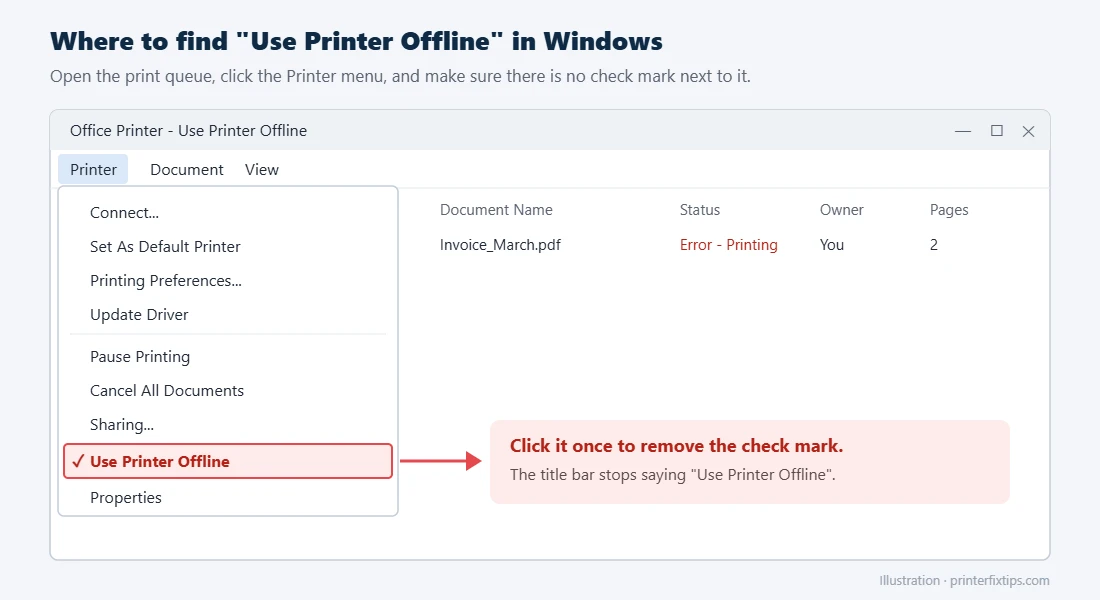
- Open the Printer menu. On newer Windows 11 builds it may sit behind a three-dot … button.
- If Use Printer Offline has a check mark, click it to remove the check. If Pause Printing is checked, click that too.
- Choose Cancel All Documents to clear anything stuck, then print a test page.
Fix 4: Restart the Print Spooler and delete stuck jobs
If documents refuse to cancel, or the queue window freezes, restart the service that handles printing.
- Press Windows + R, type
services.mscand press Enter. - Scroll to Print Spooler, right-click it and choose Stop.
- Press Windows + R again, paste
%systemroot%\System32\spool\PRINTERSand press Enter. Delete everything inside that folder (not the folder itself). Click Continue if Windows asks for permission. - Go back to Services, right-click Print Spooler and choose Start.
Prefer the command line? Open Command Prompt as administrator and run these three lines:
net stop spooler
del /Q /F %systemroot%\System32\spool\PRINTERS\*
net start spooler
Heads up: clearing that folder deletes every waiting print job on the computer, for all printers. Print them again after the spooler restarts.
Fix 5: Make it the default printer
Windows can quietly switch your default printer to “Microsoft Print to PDF” or OneNote. Your documents then go to the wrong place and your real printer looks dead. In Printers & scanners, scroll down and turn off Let Windows manage my default printer. Then click your printer and choose Set as default.
Fix 6: Check the printer’s IP address and fix the port
This is the fix for the classic case where the printer is clearly on the WiFi, other devices can print to it, but your PC still says offline. Usually the printer got a new IP address and Windows is still talking to the old one.
- Print the network configuration page from the printer’s menu and note the IPv4 address (something like 192.168.1.37).
- In Printers & scanners, click your printer, then Printer properties, and open the Ports tab.
- Look at the checked port. If it shows an old IP address, click Add Port > Standard TCP/IP Port > New Port, enter the IP from the printout and finish the wizard. Make sure the new port is the one that is checked.
- While you are on the Ports tab, select the port, click Configure Port and untick SNMP Status Enabled. Windows uses SNMP to ask the printer whether it is online. Many home printers answer slowly or not at all, and Windows then marks them offline even though they print fine.
- Click Apply and print a test page.
If the port is a WSD port, switching to a Standard TCP/IP port as described above is more reliable for wireless printers that drop off regularly.
If the printer’s WiFi light is off, or the configuration page says it is not connected, reconnect it to WiFi first. Most printers have a Wireless Setup Wizard on the control panel (HP owners can follow our HP printer WiFi setup guide). Printers without a screen usually connect with the WPS button on the router, or through the maker’s app.
Fix 7: Give the printer a permanent IP address
To stop the address from changing again, log in to your router (the address is usually printed on a sticker on the router, often 192.168.0.1 or 192.168.1.1) and look for DHCP reservation, Address reservation or Static lease. Pick the printer from the list of connected devices and reserve its current IP. From then on, the printer gets the same address every time it restarts.
Fix 8: Remove the printer and add it back with a fresh driver
- In Printers & scanners, click the printer and choose Remove.
- Go to the printer maker’s official support website, search for your exact model and download the full driver or software package for your version of Windows.
- Install it and let it find the printer. Or go back to Printers & scanners and click Add device.
Use the manufacturer’s own site, not a “driver download” site from a search ad. The real drivers are free. If Windows shows Driver is unavailable, follow our driver is unavailable fix instead.
Fix 9: Stop the printer from sleeping off the network
Open the printer’s settings on its control panel (or in its web page, which you reach by typing its IP address into a browser) and look for Sleep, Auto-Off or Power Off Timer. Set Auto-Off to never and leave a normal sleep timer. Sleep is fine; a full power-off is what drops the printer off the network.
How to Fix Printer Offline on a Mac
1. Check the queue and resume
Open System Settings > Printers & Scanners (on older macOS: System Preferences), click the printer and choose Printer Queue (or Open Print Queue). If you see a Resume button, click it. Delete any job that shows an error, then try again.
2. Remove the printer and add it again
In Printers & Scanners, select the printer and click Remove Printer (or the minus button). Then click Add Printer, Scanner or Fax, select your printer and, under Use, choose AirPrint if it is offered. AirPrint does not need a separate driver and tends to be the most stable option on a Mac.
3. Reset the printing system
This is the Mac’s version of a clean slate. In Printers & Scanners, Control-click (right-click) inside the printer list and choose Reset Printing System, then confirm. It removes every printer and clears all print jobs, so you will need to add your printer again afterward. Apple’s instructions: Reset the printing system on your Mac.
4. Check the network
Make sure the Mac is not on a guest network and that any VPN is off. If an iPhone on the same WiFi can see the printer in its AirPrint list but the Mac cannot, the problem is on the Mac side. If nothing can see the printer, reconnect the printer to WiFi.
Printer Keeps Going Offline? How to Make the Fix Stick
If your printer comes back online and then drops off again every day or two, a one-time fix will not hold. These are the changes that stop it for good:
- Reserve its IP address in the router (Fix 7). This alone solves most repeat cases.
- Turn off SNMP status on the Windows port (Fix 6).
- Use a Standard TCP/IP port instead of a WSD port on Windows.
- Turn off Auto-Off on the printer (Fix 9).
- Move the printer closer to the router, or out of a cabinet. A weak signal makes printers drop out and fail to reconnect.
- Check your router’s band settings. Many printers only use 2.4 GHz. If your router or mesh system pushes devices to 5 GHz, give the 2.4 GHz network its own name and connect the printer to that.
- Update the printer firmware from its control panel or the maker’s app. Firmware updates often fix wireless bugs.
Free Repair Tools From HP, Epson, Canon and Brother
Each big brand has a free app that checks the connection and fixes common problems automatically. Get them from the manufacturer’s website or your computer’s app store.
- HP: the HP app (formerly HP Smart) has a Diagnose & Fix option. On Windows, HP Print and Scan Doctor does a deeper check. See our HP printer guides.
- Epson: run Epson Connect Printer Setup or the Wi-Fi Setup wizard on the printer’s control panel. See our Epson printer guides.
- Canon: the Canon PRINT app and the printer’s Wireless LAN setup reconnect most PIXMA and MAXIFY models. See our Canon printer guides.
- Brother: the Network Connection Repair Tool for Windows fixes the IP address problem described in Fix 6. See our Brother printer guides.
When It Really Is the Printer
If the printer cannot print its own configuration page, shows a hardware error code, or will not print even over a USB cable on a second computer, the issue is inside the printer. At that point, contact the manufacturer through its official website, especially if the printer is still under warranty.
Avoid fake “printer support” numbers. Search ads and pop-ups often show phone numbers that claim to be HP, Epson or Canon support. Real manufacturers do not need remote access to your computer to fix an offline printer, and they never ask you to pay by gift card. Get support contacts only from the manufacturer’s own website.
Frequently Asked Questions
Why does my printer say offline when it is connected to WiFi?
Usually the printer got a new IP address and your computer is still sending jobs to the old one, or Windows marked it offline because it did not answer an SNMP status check. Print the printer’s network configuration page, update the port in Printer properties to the current IP address, and untick SNMP Status Enabled.
How do I get my printer back online?
Restart the printer, router and computer in that order. Then open the print queue, make sure Use Printer Offline is not checked, cancel stuck documents and restart the Print Spooler service. On a Mac, remove the printer and add it again, or reset the printing system.
Why does my printer keep going offline?
The most common reasons are a changing IP address, the printer powering itself off to save energy, a weak WiFi signal, and Windows SNMP status checks. Reserve the printer’s IP address in your router, turn off Auto-Off on the printer and turn off SNMP status on the Windows port.
Does restarting the Print Spooler delete my documents?
Stopping and starting the service on its own keeps your queue. Deleting the files in the spool\PRINTERS folder does remove every waiting print job, so you will need to print those documents again.
Can a Windows update make my printer go offline?
Yes. Updates sometimes replace the printer driver or reset the spooler. Restart the Print Spooler first. If that does not help, remove the printer and reinstall the latest driver from the manufacturer’s website.
Will resetting the printing system on a Mac delete my printers?
Yes. Reset Printing System removes all printers, scanners and print jobs from the Mac. Your files are not affected. You will need to add your printer again afterward.
Most offline printers are back in business after Fix 3 or Fix 4, and Fix 6 and Fix 7 keep them that way. If yours is still stuck, browse our WiFi and connection guides or send us your printer model and what you have tried.